

Customer Notifications
1ClickImpact offers two ways to let customers know about the environmental impact their order made — automatic impact emails and a shipping email snippet you can add to your existing Shopify notifications.
1. Automatic impact emails
1ClickImpact can automatically send customers a dedicated impact confirmation email after each order. These emails include impact details, certificate links, and tracking information — all branded and ready to go.
You can enable or disable these emails, preview the templates, and request a free custom branded design from our team.
For full details on setting up automatic impact emails, see the Email Notifications page.
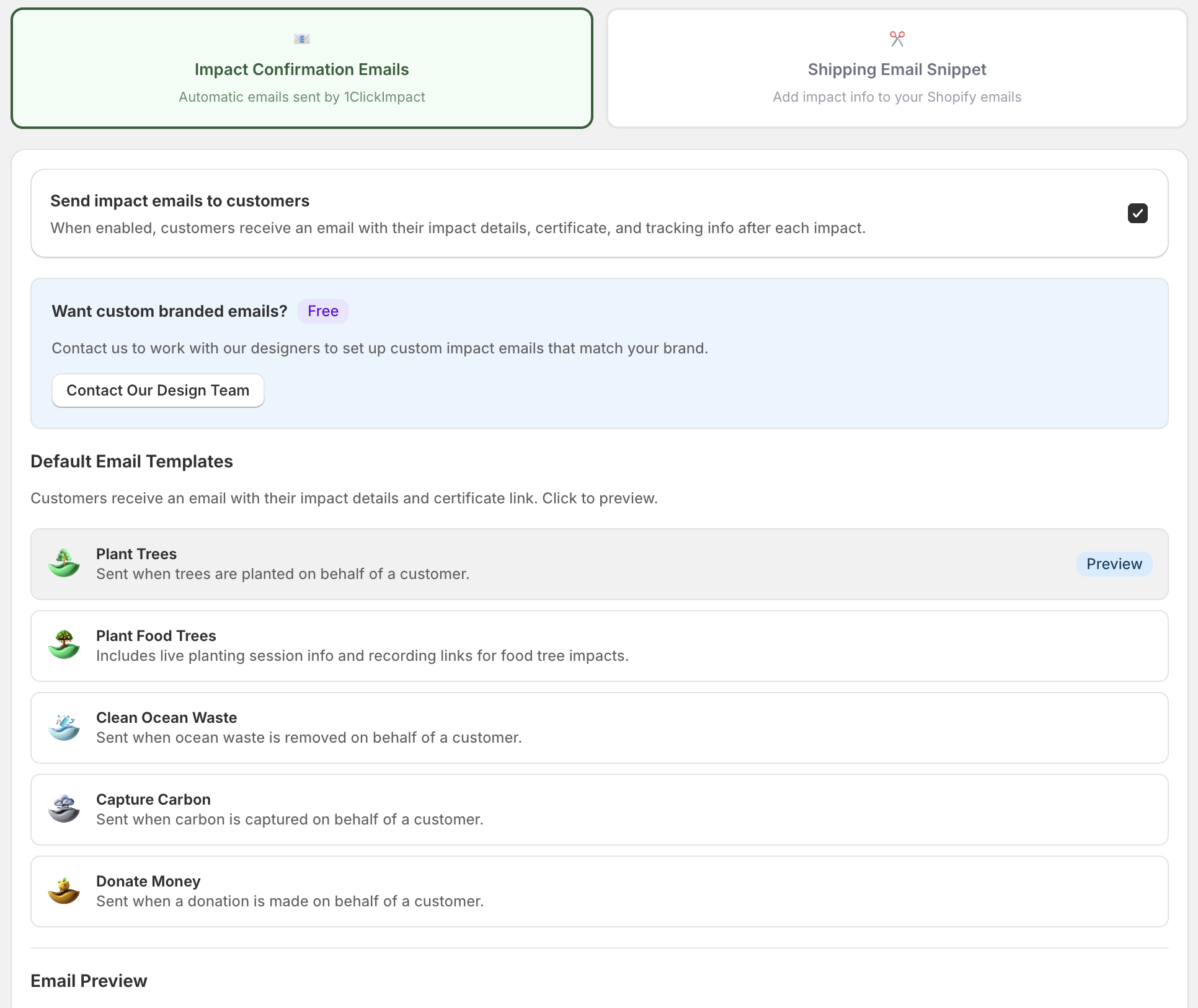
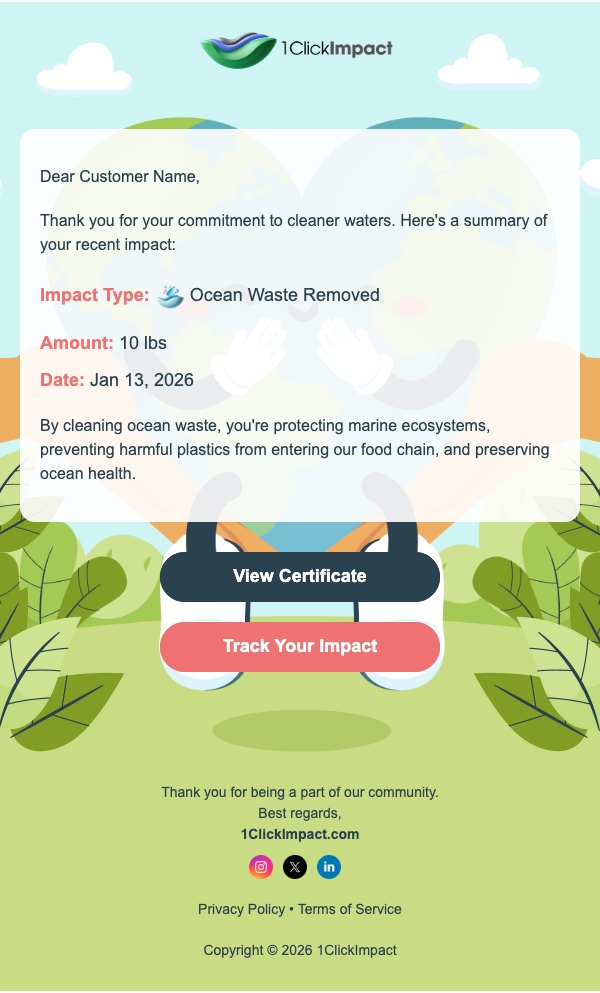
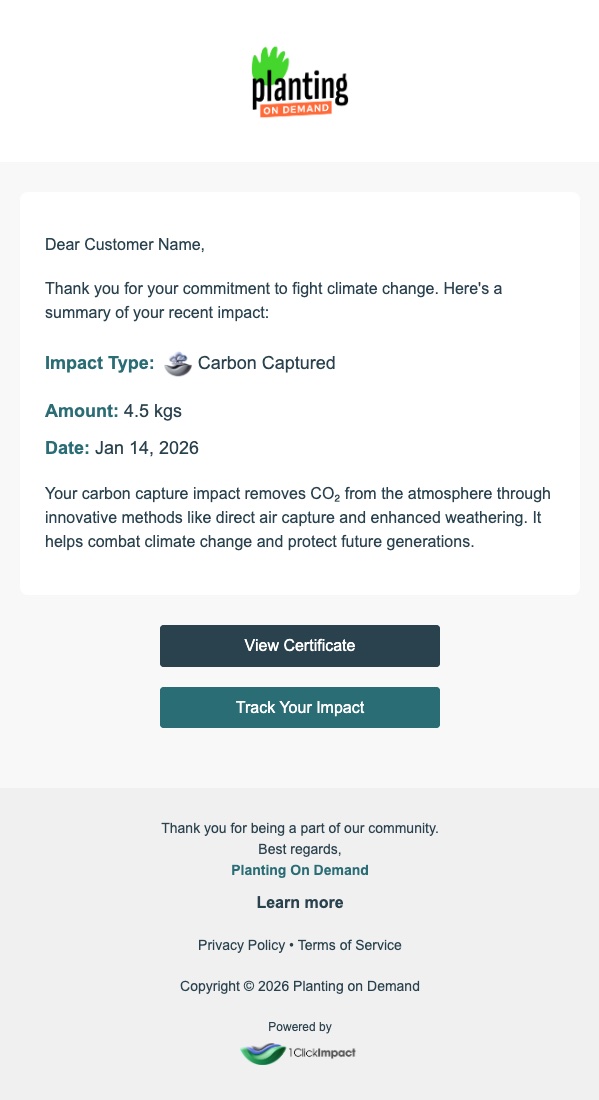
Want custom branded impact emails that match your store's look and feel? Our design team will create them for you — free of charge. Just contact us.
2. Shipping email snippet
You can also add an impact summary directly into your Shopify shipping confirmation and shipping update emails. This shows customers the environmental impact of their order right in their inbox alongside their shipping details.
What it displays
The email snippet renders:
- Impact icons — Visual icons for each impact category (trees, ocean, carbon, coral, donations)
- Summary text — A line describing the impact made by the order (e.g., "Your order planted 2 trees and removed 1 lb of ocean plastic")
- Certificate links — Direct links to impact certificates for each category
Where to add it
The snippet goes into your Shopify notification email templates. The most common placements are:
- Shipping confirmation — Sent when you fulfill an order
- Shipping update — Sent when tracking information is updated
To add the snippet:
- Go to your Shopify admin
- Navigate to Settings → Notifications
- Find Shipping confirmation (or Shipping update) and click on it
- Click Edit code
- Paste the Liquid snippet in the email body where you want the impact section to appear (typically below the order summary or above the footer)
- Click Save
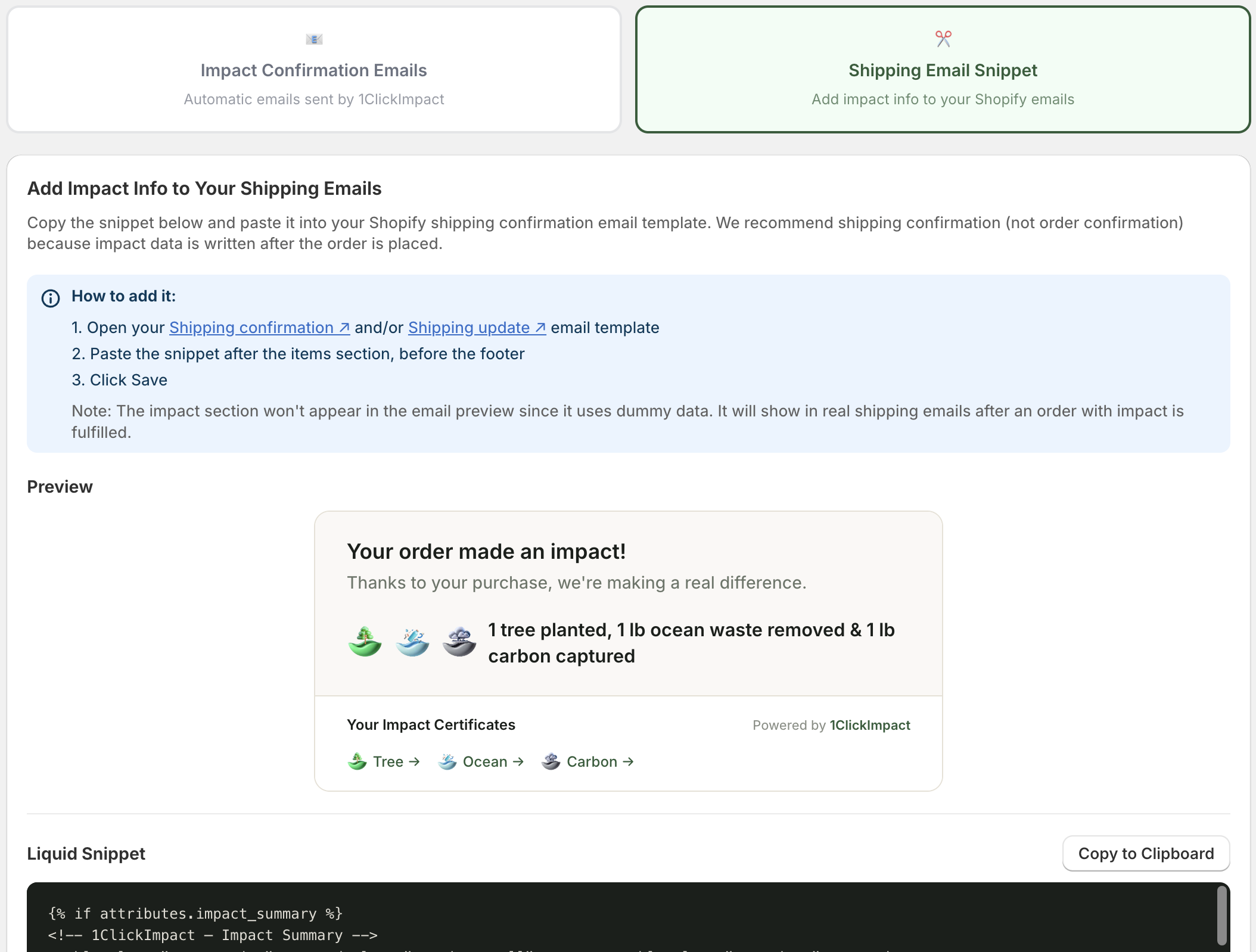
The Liquid snippet is available in the 1ClickImpact app under Profile & Settings → Email Notifications → Shipping Email Snippet tab. Copy it from there to ensure you have the latest version.
Preview limitations
The email preview in Shopify's notification editor will not show the impact data. This is because the preview uses sample data that does not include 1ClickImpact order data. To see the snippet in action, you need to send a real shipping confirmation for an order that has been processed by 1ClickImpact.
To test the snippet, place a test order on your store, let it process through 1ClickImpact, then fulfill it. The shipping confirmation email will include the rendered impact section.
Data availability
The snippet reads impact data that is written to the order after processing completes. If you fulfill an order immediately (within seconds of it being placed), the impact data may not appear in the email yet. In normal workflows, processing completes well before fulfillment.
Customization
The snippet includes inline CSS for styling. You can modify the colors, fonts, and spacing directly in the code to match your email branding. The structure uses standard HTML table layouts for maximum email client compatibility.