

Impact Counter
The Impact Counter displays your store's total environmental impact as a live stats widget. It pulls real data from your shop metafields and presents it with animated counters.
What it displays
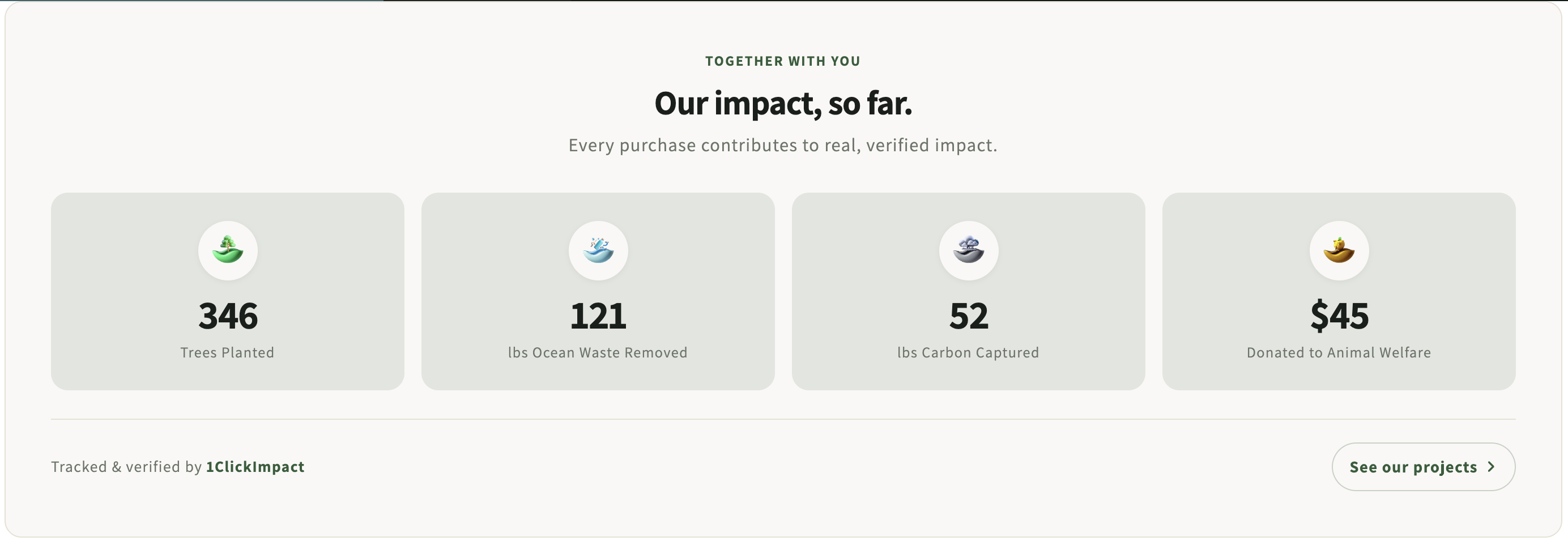
The Impact Counter shows cumulative totals for each impact category your store has contributed to:
- Trees planted — Total number of trees planted through your orders
- Ocean waste removed — Total pounds of plastic removed from oceans
- Carbon captured — Total pounds of CO₂ captured
- Money donated — Total amount donated to causes
Each stat is shown with an icon and an animated tick-up counter that counts from zero to the current total when the widget scrolls into view.
Layouts
The Impact Counter offers three layout options:
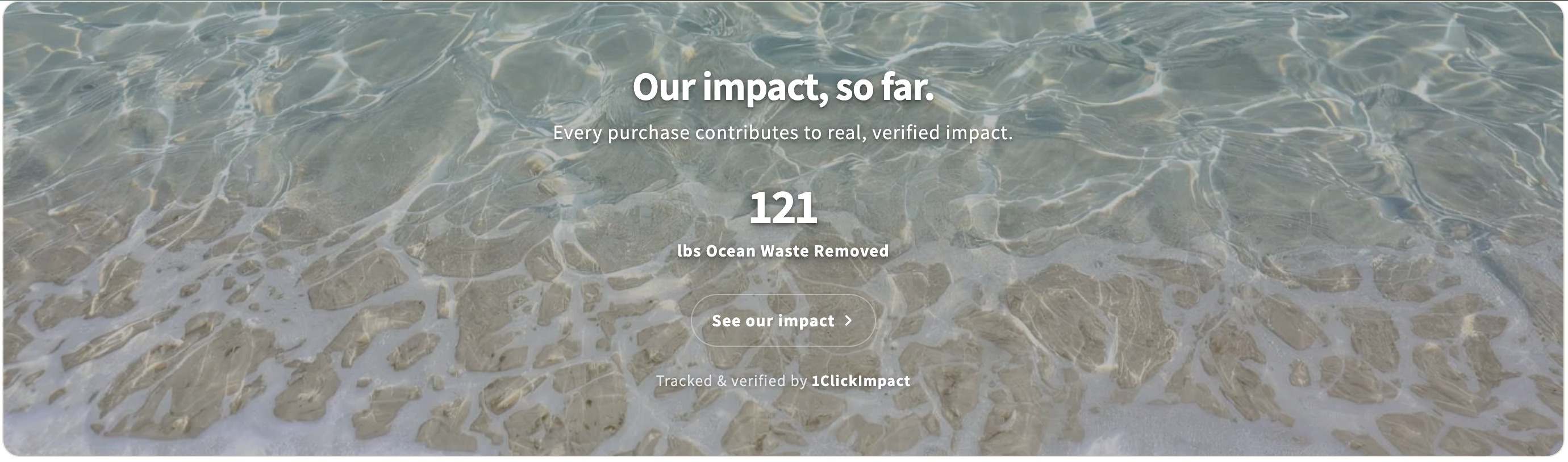
Hero Image
Stats are overlaid on a full-width background image. You can choose from preset images (forest, ocean, carbon, donate themes) or provide your own custom image URL to match your brand. This layout creates a strong visual statement and works well as a homepage hero section.

Card Grid
Each impact stat is displayed in its own card, arranged in a responsive grid. This works well as a standalone section on your homepage, about page, or a dedicated impact page.
Compact Line
All stats are displayed in a single horizontal row. This is a space-efficient option that works well in footers, sidebars, or between other sections.

Installation
- Go to your Shopify admin
- Navigate to Online Store → Themes → Customize
- Navigate to the page where you want the counter (e.g., homepage)
- Click Add section and search for 1ClickImpact Impact Counter
- Choose your preferred layout
- Click Save
The Impact Counter reads data from your shop's metafields, which are updated automatically after each order is processed. New stores will see zeros until orders with impact start coming in.
How the data works
Impact totals are stored as Shopify shop metafields and are accessible via Shopify's public Storefront API. The widget reads these metafields on page load and animates the numbers. The data updates after each order is processed by 1ClickImpact.
Customization options
The following settings are available in the theme editor:
- Layout — Select Card Grid, Hero Image, or Compact Line
- Heading — Custom heading text (e.g., "Our Impact So Far")
- Subtitle — Optional text below the heading
- Primary color — Controls icon and counter number colors
- Background color — Sets the section background
- Text color — Sets the heading and label text color
- Hero image preset — Choose from preset background images (Hero Image layout only)
If your totals are not appearing, make sure the app has processed at least one order and that your shop metafields are accessible. You can verify metafields in your Shopify admin under Settings, then Custom data.